Collaboration with Git and GitHub
Lesson objectives
- Review git commands
- Describe individual and collaborative workflows with git
- Introduce git commands for collaborative workflows
- Demo collaborative workflows in practice
- See additional useful git tips and tricks
Acknowledgements
This material is heavily influenced by the previous works of Madicken Munk, Karthik Ram and James Howison from previous summer and winter schools.
Other helpful and fun resources for git:
First, a quick git refresher
Git in one picture
Git records the history of your project — every saved version, who changed what, and why. Your changes move through a few “places”:
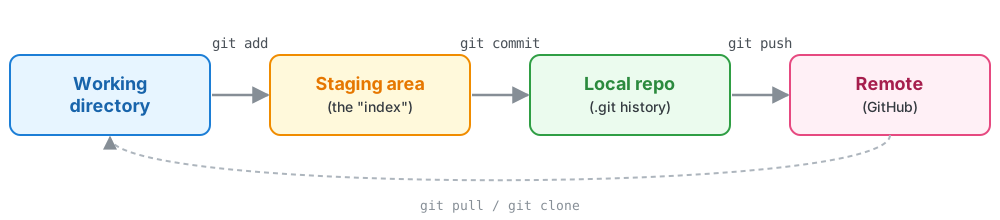
You stage the changes you want (git add), commit them as a snapshot (git commit), and push to share them (git push).
The everyday loop
99% of git, day to day, is this loop — over and over:
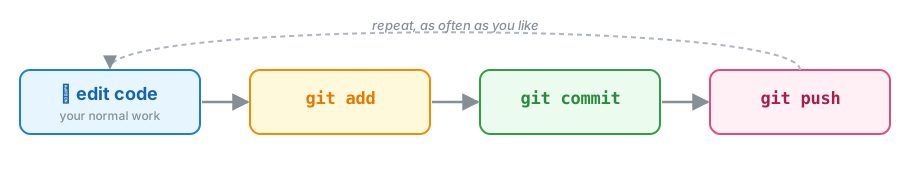
- a commit is a labeled snapshot of your project at a moment in time
- a branch is just a movable label pointing at a commit
- a remote is a copy of the repository on a server (like GitHub)
Branches and merging
A branch lets you work without disturbing main. When it’s ready, you merge it back.
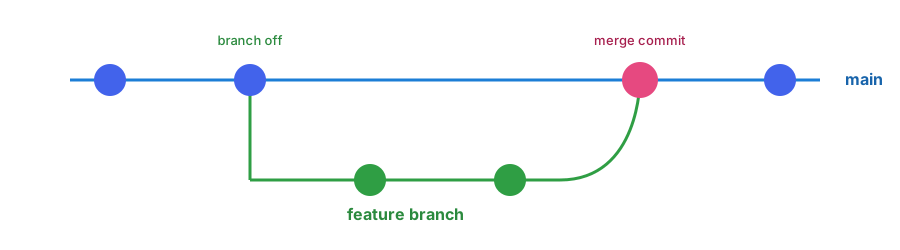
This single picture is the heart of every workflow we’re about to see.
Workflows with git: individual
An individual workflow (without a remote)
commit, commit, commit …
danikamacdonell@computer: ~/Git$ mkdir research-code ; cd research-code
danikamacdonell@computer: ~/Git/research-code$ git init
Initialized empty Git repository in /Users/danikamacdonell/Git/research-code/.git/
danikamacdonell@computer: ~/Git/research-code$ git branch -M main
danikamacdonell@computer: ~/Git/research-code$ touch README.md ; open README.md
danikamacdonell@computer: ~/Git/research-code$ git add README.md
danikamacdonell@computer: ~/Git/research-code$ git commit -m 'add README with code description'
[main (root-commit) 49c9e77] add README with code description
 1 file changed, 0 insertions(+), 0 deletions(-)
     create mode 100644 README.md
danikamacdonell@computer: ~/Git/research-code$ git log
Author: Danika MacDonell <danikamacdonell@computer>
    Add a README with code description
An individual workflow (with a remote)
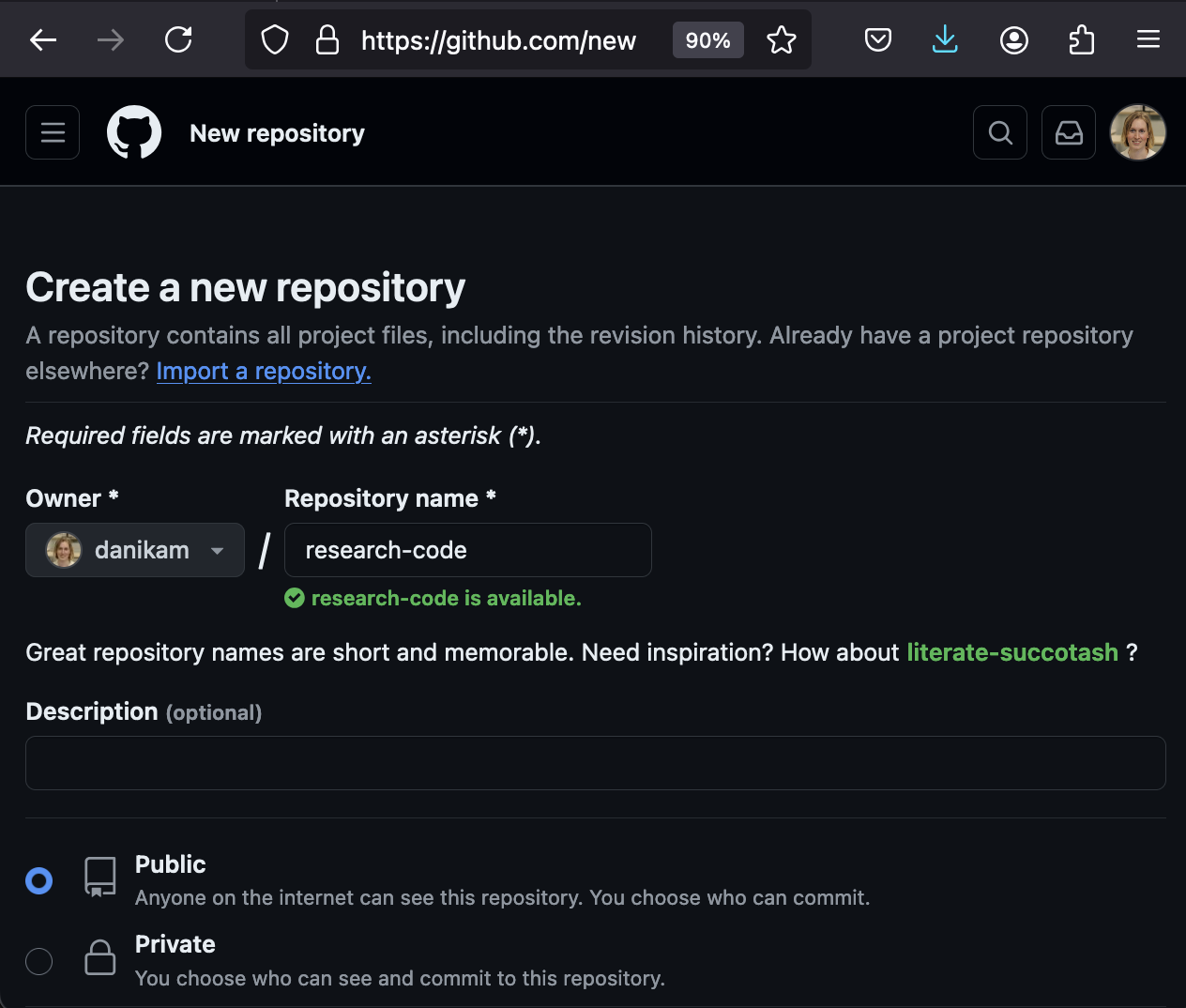
commit push, commit commit push, commit push …
danikamacdonell@computer: ~/Git/research-code$ git remote add origin git@github.com:danikam/research-code.git
danikamacdonell@computer: ~/Git/research-code$ git push -u origin main
Enumerating objects: 3, done.
[...]
To github.com:danikam/research-code.git
 * [new branch]      main -> main
branch 'main' set up to track 'origin/main'.
With your code on a remote (like GitHub, GitLab, or an internal server for your lab), your work is easily accessed by peers!
💡 GitLab and other Git platforms have slightly different interfaces and features from GitHub, but the basic actions are generally pretty similar.
… but what about working with others?
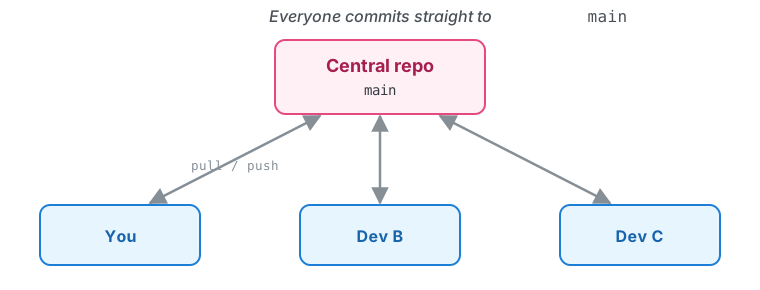
Centralized workflow
All members work on the same repository
git pull before starting work
Everyone commits to main
git push
If there is no merge conflict, 🙌
Otherwise fix the merge conflict, then push
Feature branching workflow
Members work on the same repository, but use individual branches to do feature development
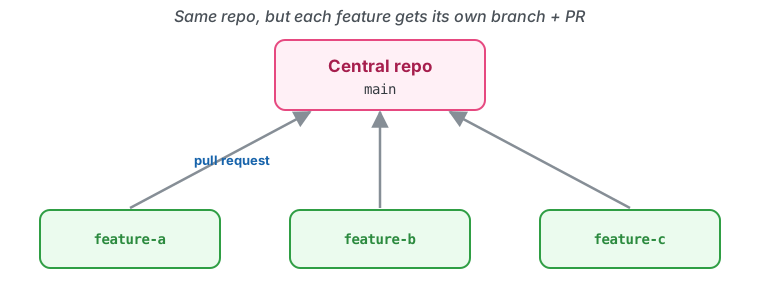
Create and switch to a branch
Add commits
Push feature branch to GitHub
Start a pull request
Discuss, add more commits, merge
Some important commands for this workflow:
git branchgit switch -c <branchname>(or the oldergit checkout -b <branchname>)git push -u origin <branchname>
… add some more commits, then git push and open a pull request
Pull requests
Pull requests are an excellent tool for fostering code review. If you’re using GitHub for team projects, you should be using these extensively.
A good practice is for someone else to merge your code, ensuring two people understand each feature. If a reviewer doesn’t have merge rights, the requirement may instead be an approving review before the feature is merged.
The pull request lifecycle
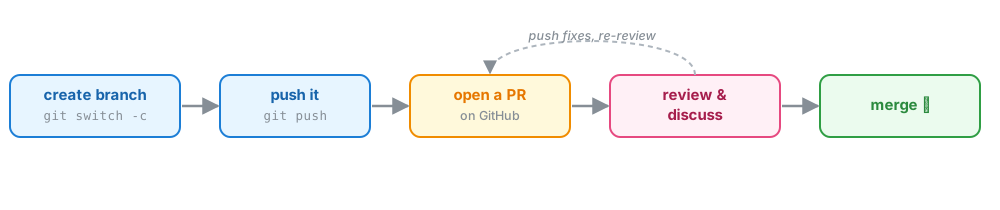
The PR is where review happens — comments, suggestions, and fixes — before anything lands on main. (That’s the peer code review module.)
Pull request best practices
Try to make frequent, targeted pull requests that add a specific feature or set of features
✅ “Adds a new click feature for area layers in the geospatial mapping tool”
❌ “Adds the last 3 years of my thesis work”
Itemize each major addition.
Pull request tip
Using the GitHub interface, you can change the target of a pull request. The default is the main branch, but it could be another feature branch. This is useful when you want to co-develop a feature branch with a collaborator outside of main.
⛔️ Never send a pull request from main.
🙅 Never send a large pull request without warning the team first.
Demo
Pick an open issue on the school repository, then:
[...]: ~/Git/research-code$ cd ../summerschool
[...]: ~/Git/summerschool$ git switch -c update-git-lesson
[...]: ~/Git/summerschool$ open README.md
[...]: ~/Git/summerschool$ git add README.md
[...]: ~/Git/summerschool$ git commit -m "Updating the Git/GitHub lesson."
[...]: ~/Git/summerschool$ git push -u origin update-git-lesson
Open the pull request, reference the issue in the description, and close the issue when it merges.
Practice
cd ../research-code
Using the feature branching workflow:
Use at least two commits to:
Create a Python script in the source directory called
PrintMessage.pythat prints a simple message.Add a new section to the README to document the new script.
Make a pull request!
Forking workflow
In this workflow each collaborator “forks” a copy of the centralized repository. These forks are individual remote repositories for each collaborator. Collaborators submit pull requests from their forks to the centralized repository.
When do I need to fork?
- If you don’t have write access and want to suggest changes, forking makes sense.
- If you’re an active project collaborator with write access, use the branching workflow.
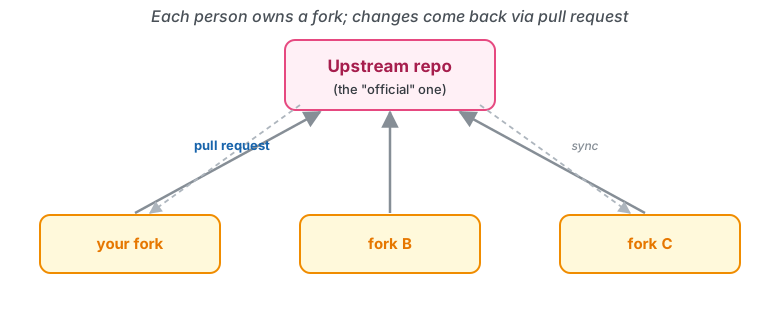
Forking workflow guidelines
Everyone has a fork of a “central” repository
Add commits to feature branches
Push feature branches to individual forks
Send a pull request from the feature branch on your fork to the central repository
This is how most open-source contributions work.
The gh CLI ties it together
GitHub’s command-line tool (gh) lets you stay in the terminal for the GitHub half of the workflow:
gh repo fork tyfolino/climkern --clone   # fork + clone in one step
git switch -c fix-typo
# ... make changes, commit ...
git push -u origin fix-typo
gh pr create --fill                      # open a PR from the terminal
gh pr status                             # see your PRs
gh pr checkout 48                        # check out someone else's PR locally
Extra tips
Tip #1: Always
git pullbefore you start new workTip #2: Keep branch names descriptive
Tip #3: Generously use branches (but delete them when they’re merged or stale)
Tip #4: Use the GitHub command line tool (
gh) to simplify your workflow
Practice
Make a fork of https://github.com/mcsc-impact-climate/urssi-research-code and, using the forking workflow, update the script source/PrintMessage.py to instead print out your name (or something similarly personalized).
danikamacdonell@computer: ~/Git/research-code$ cd ..
danikamacdonell@computer: ~/Git$ git clone git@github.com:danikam/urssi-research-code.git
danikamacdonell@computer: ~/Git$ cd urssi-research-code
danikamacdonell@computer: ~/Git$ git remote add upstream git@github.com:mcsc-impact-climate/urssi-research-code.git
danikamacdonell@computer: ~/Git$ git switch -c personalize-message
Add your new file(s), push, and open a pull request
Working on a shared repository
Protecting main: rulesets
On a shared repository, you usually don’t want anyone pushing straight to main.
2026 note: GitHub rulesets have largely replaced classic “branch protection rules”. On a branch or tag you can require:
- a pull request plus N approving reviews before merge
- status checks (CI, linters) to pass
- the branch to be up to date
- linear history or signed commits
Merge queues then batch-test and merge approved PRs in order, so main never breaks even when several PRs land at once.
Releasing: don’t forget the back-merge
A common multi-branch setup: develop on dev, release from main.
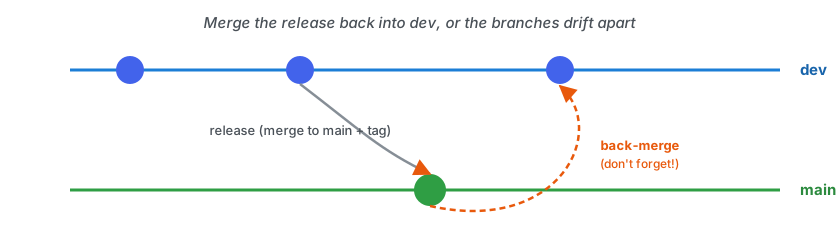
The trap: the release merge commit lives only on main. If you never merge it back, main and dev drift apart — and tools like git describe can’t see your tags from dev.
The fix — pick one each release: fast-forward main to dev, or merge main back into dev (the classic “back-merge”).
Real story: ClimKern’s v1.2.0 tag sat on main only, so dev thought the latest version was v1.1.0. One back-merge fixed it.
More useful git commands
Rebasing
Rebasing lets you pull new commits from the parent branch or upstream repository (if you’re on a fork).
From the parent branch:
git fetch origin
git rebase origin/<parent-branch>
From an upstream forked repository:
git remote add upstream https://github.com/original-owner/repo.git
git fetch upstream
git rebase upstream/<parent-branch>
Tagging commits
Branches are special labels that track a series of commits — but what if you want a special name for a particular commit (like when you released a new version of your code)? You can tag these.
git tag -a <tagname> <hash>— useful for tagging a particular commit farther back in historygit tag -a <tagname> -m "tag message"— tag the current commit with a descriptive messagegit push origin <tagname>— push a particular tag up to your remotegit push origin --tags— push all of your tags up to your remote
Amending a commit
Oh no! I made a typo in my commit message!
git commit --amend is useful both for fixing commit messages and for adding in files that were supposed to be committed and weren’t.
Cherry picking
What if you have a commit that really belongs on a different branch? Or, in development, you fixed a bug that you think should be in its own PR? You can “cherry pick” that commit onto a new branch.
git cherry-pick <hash>
Undoing changes
Reverting vs. restoring:
git revert <commit hash>
git restore <filename>
Stashing changes
Oh no! I started making changes but I’m not on the feature branch I thought I was!
git stash can be used to hide the changes in your working tree, and then bring them back out with git stash apply when you’re on the appropriate branch.
More resources
GitHub Issues help you share code issues or feature requests with collaborators
Do you need to version control large files? git lfs and git annex are tools designed to help with this
Exercises
Choose one of the following:
If you brought a project to work on: open an issue on your repository for something you’d like to improve that’s a beginner-friendly issue. Describe the issue thoroughly. Then, working in groups at your tables, have a partner fork your project and submit a pull request fixing that issue. Do not merge the pull request today.
Make a feature branch on your project and add a simple new feature (this could even just be some new info in the README). Submit a pull request on your project using that branch. Do not merge the pull request today.